
How to Make AI Beats and Loops From Text: The Producer’s Playbook
Type out a genre, a tempo and a mood, and a text-to-beat model will hand back a finished loop in seconds — no sample crate, no drum programming from scratch. That’s the core promise behind any AI music generator from text: the real skill on top of it is control — naming the right genre, locking a tempo, adding swing so the pattern breathes, and asking for a seamless loop that survives a DAW’s warp engine.
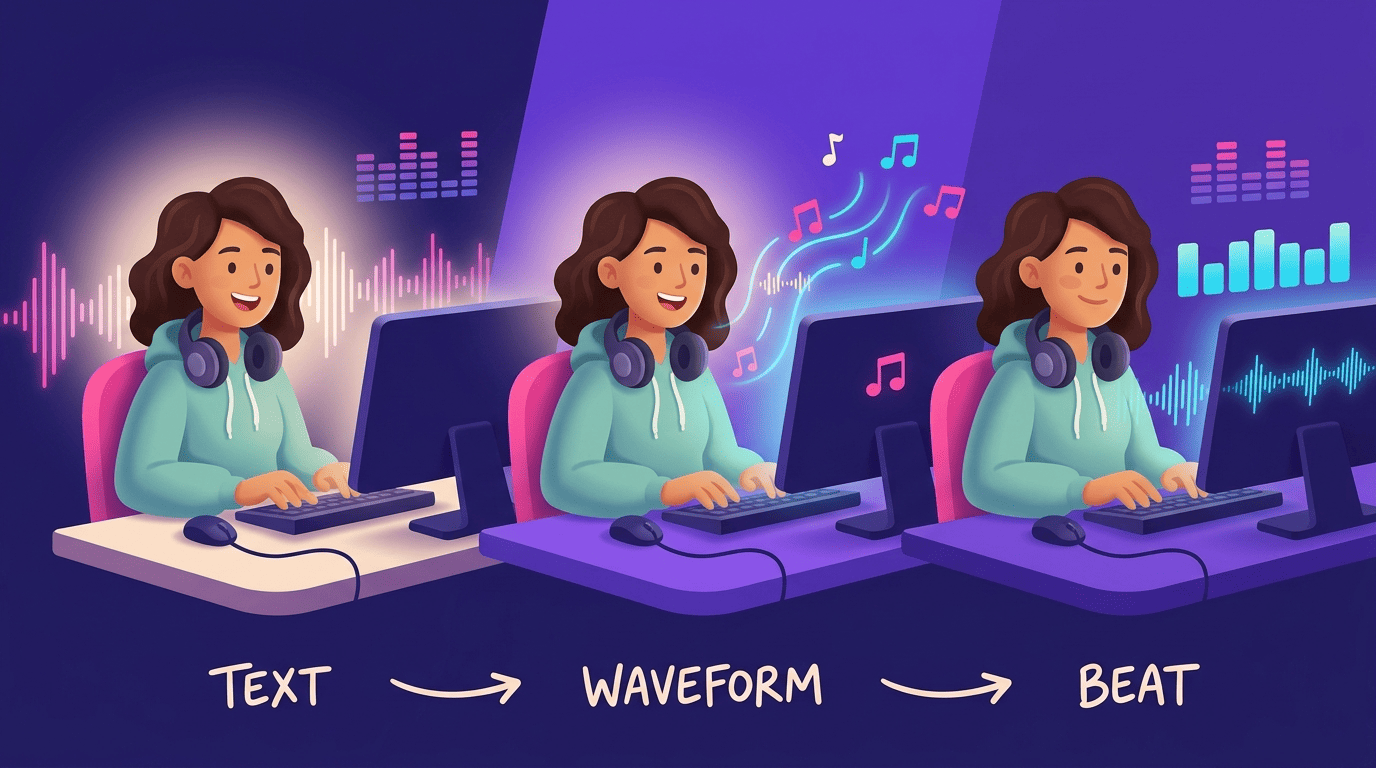
This guide walks through the full producer workflow — genre selection, BPM, groove, loop points, stems, MIDI and licensing — so a text prompt reliably turns into something you can actually release.
How Text-to-Beat Generation Actually Works
Text-to-beat tools are trained on large libraries of drum patterns, samples and full mixes, so the model can parse a sentence and pull out genre, tempo, instrumentation and mood, then render that description as audio or MIDI. The AI beat generator does not search a sample database for a match — it synthesizes a new pattern each time, which is why two nearly identical prompts can still produce slightly different results.
From words to a waveform
The standard workflow is short: enter a prompt describing mood, genre and tempo, generate a first pass, listen back, adjust the wording, and download the result. Most text-to-beat engines expose this as a loop — prompt, generate, refine — rather than a one-shot render, because the first output rarely nails every element on the first try.
That loop matters more than it sounds like it should. A producer who treats the first generation as a rough sketch, rather than a finished file, ends up with far more usable material than one who accepts or rejects a single render — the model responds to specific feedback (“faster hi-hats,” “less reverb on the snare”) far better than to a completely rewritten prompt.
The five layers of a beat
A useful mental model treats a beat as five stacked layers: tempo, drum pattern, groove, tone and variation. Naming all five in a prompt — instead of just “trap beat” — is usually the difference between a generic loop and one that fits a specific track. Understanding these layers is the foundation for every prompting technique in this guide.
A prompt that only sets tempo and drum pattern, for example, can still land far from the mark on tone — a “dark” trap beat and a “bright” trap beat can share identical tempo and drum programming while sounding like completely different tracks once the tone word changes.
Choosing a Genre: Hip-Hop, Trap and Lo-Fi Beats
Genre is the single word that does the most work in a beat prompt, because it implicitly sets tempo range, drum voicing and mix tone all at once. Text-to-beat engines typically cover a wide net, and each one carries its own drum palette the moment it’s named:
- Trap — punchy kick, tight rolling hi-hats, sliding 808s
- Lo-fi / chillhop — mellow drums, vinyl crackle, jazzy chords
- House / deep house — four-on-the-floor kick, rolling bassline
- Techno — driving, repetitive kick and hi-hat grid
- Drill — sliding 808s with sparse, off-kilter hi-hat placement
- Afrobeat — syncopated percussion, mid-tempo groove
A punchy kick, tight hi-hats and sliding 808s read as trap the moment they hit, without any other words needed.
Trap and hip-hop
Trap leans on sliding 808 basslines, tight rolling hi-hat rolls and a hard, short kick, typically sitting around 140-160 BPM. Boom-bap and classic hip-hop sit slower and leave more space in the low end, which matters if the beat needs to sit under a vocal rather than carry the track on its own.
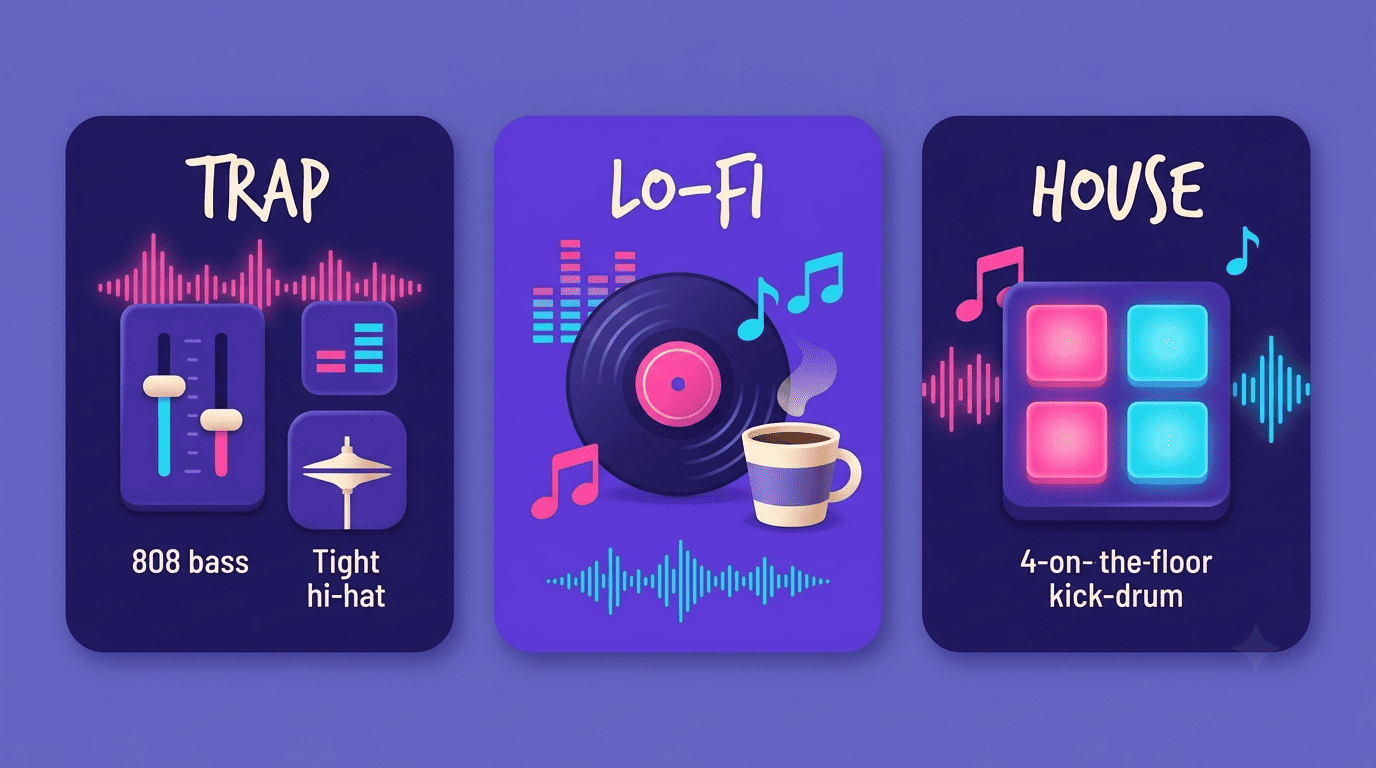
The hi-hat pattern is usually what separates a convincing trap beat from a generic one — rolling 16th and 32nd-note rolls with velocity variation read as trap even over a fairly plain kick-and-snare pattern, so it’s worth naming explicitly in the prompt rather than assuming the genre word alone will trigger it.
Lo-fi and chillhop
Lo-fi and chillhop run much slower, roughly 75-90 BPM, and lean on vinyl crackle, jazzy chord voicings and mellow, understated drums. A prompt like “looping chillhop beat with jazzy chords, vinyl crackle and mellow drums” describes the genre almost entirely through texture words rather than instrument names — which is exactly how lo-fi tends to read to a listener.
Drum programming in lo-fi is intentionally loose and slightly behind the beat, so pairing the genre word with a groove term like “laid-back” tends to reinforce the mood rather than fight it.
Setting BPM and Tempo in Your Prompt
Tempo is the one variable text-to-beat models will not guess well without help, so writing the exact BPM number into the prompt is the single most reliable way to lock it. A prompt like “house bass loop 124 BPM” or “trap beat 90 BPM” produces output rendered right at that tempo rather than at whatever the model treats as a genre default.
Name the number
If a BPM number is missing from the prompt, the model falls back to whatever tempo is typical for the named genre — which is fine for a rough sketch but risky once a beat has to lock to an existing session tempo. Naming the number removes the guesswork entirely.
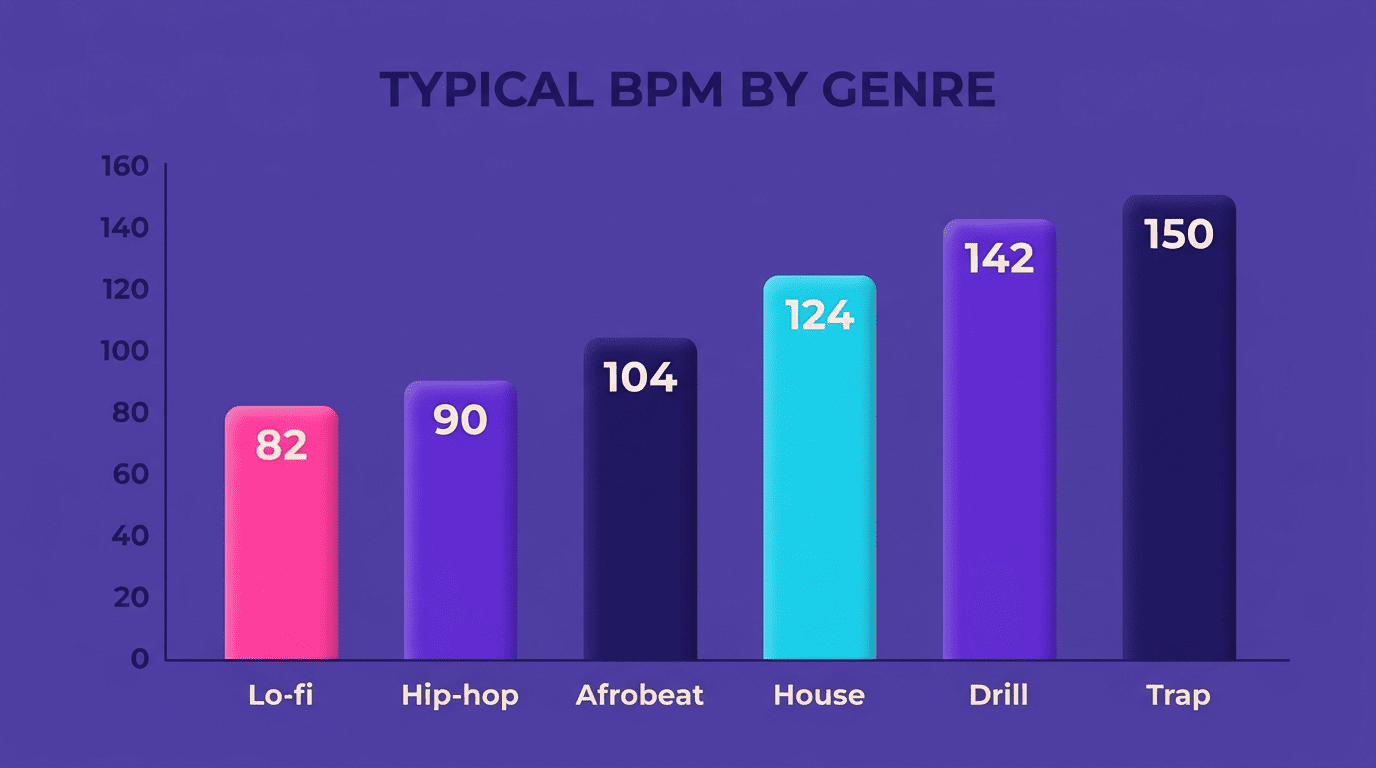
This matters most when a loop needs to sit inside an existing arrangement rather than stand alone. A beat generated without a stated tempo can land anywhere within a genre’s typical range, and nudging it afterward in a DAW often introduces artifacts that a correctly-specified prompt would have avoided entirely.
Tempo cheat-sheet by genre
Genre names carry a rough tempo by default, but the ranges below vary enough between sub-styles that naming the exact number is still worth the extra word in the prompt.
Trap is the widest range on the list because it spans both classic full-time trap and the slower, half-time-feel style that dominates a lot of current production — two beats with the same DAW tempo can feel completely different depending on which side of that split they land on.
| Genre | Typical BPM range |
|---|---|
| Lo-fi / chillhop | 75-90 |
| Hip-hop / boom-bap | 85-95 |
| Trap (full-time / half-time) | 140-160 (feels 70-80) |
| House / EDM | 120-128 |
| Drill | ~142 |
| Afrobeat | ~104 |
Adding Swing and Groove
Swing takes a drum pattern off the rigid grid and shifts a portion of the notes slightly late, which is what makes a beat feel human rather than quantized. Even a small swing percentage — the kind that is barely visible on a piano-roll — can noticeably change how relaxed or aggressive a pattern feels.
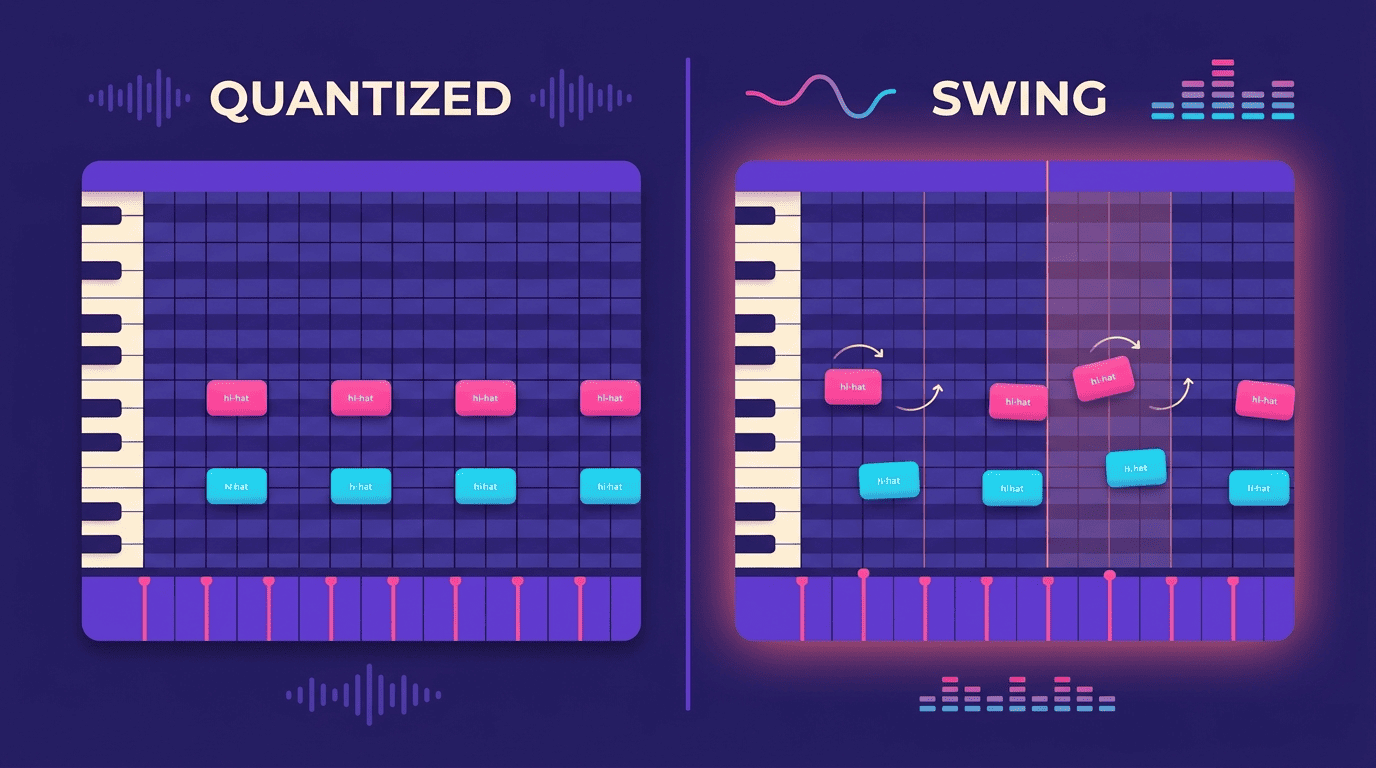
A perfectly quantized loop reads as mechanical. Every hit lands exactly on the beat, with no timing variance, which is precisely why a straight machine-gun hi-hat pattern can sound stiff even when the notes are technically correct. Swing nudges the off-beat hits later, mimicking the micro-timing of a live drummer, and the effect compounds with tempo — a small swing amount reads very differently at 90 BPM than it does at 145 BPM.
Groove words in the prompt are the fastest way to steer feel. Terms that describe timing rather than instrumentation are exactly the vocabulary text-to-beat models respond to when a pattern sounds too stiff. A short list worth keeping in every prompt:
- “swing” — shifts off-beat hits later for a looser pocket
- “bounce” — adds a rounder, more elastic feel to the low end
- “punch” — tightens transients without changing swing amount
- “laid-back” — pulls the whole pattern slightly behind the grid
Refine one iteration at a time, not the whole prompt. If a first generation sounds rigid, adding “add swing” or “laid-back bounce” to the existing prompt is usually enough to fix it without touching genre or tempo. Phrases like “tight and punchy” push in the opposite direction, toward a stiffer, more aggressive pocket — useful once the genre and tempo are already locked in.
Making a Seamless Loop
A loop that is meant to repeat needs to end exactly where it began — in pitch, in timing and in energy — or the seam will click, thump or drift every time it cycles. Most modern text-to-beat tools handle this with dedicated loop modes that repeat the pattern without an audible transition, rather than simply cutting audio at a fixed length.
MIDI is an American-Japanese technical standard that describes a communication protocol, digital interface, and electrical connectors that connect a wide variety of electronic musical instruments, computers, and related audio devices for playing, editing, and recording music.
Wikipedia, “MIDI”
Ask for a loopable structure
Requesting a seamless loop directly in the prompt — or refining a generated beat with “make this loop smoothly with a cleaner ending” — pushes the model to render a pattern that resolves cleanly. A good loop is also a whole number of bars — 2, 4 or 8 — which keeps the pattern aligned with a DAW’s bar grid and makes it far easier to chain repeats without drift.
An odd bar count, or a loop that fades slightly instead of ending cleanly, is the most common reason a generated beat sounds fine in isolation but stutters the moment it’s set to repeat inside a full arrangement.
Crossfade and loop points
Some tools stitch the end of a clip back to its beginning using a technique closer to audio inpainting than a simple crossfade, preserving tempo and key across the seam. As a rule of thumb, a short crossfade of 2-5 seconds works for rhythmic, percussive loops, while ambient or pad-heavy material can take a longer 5-15 second crossfade without the blend becoming audible.
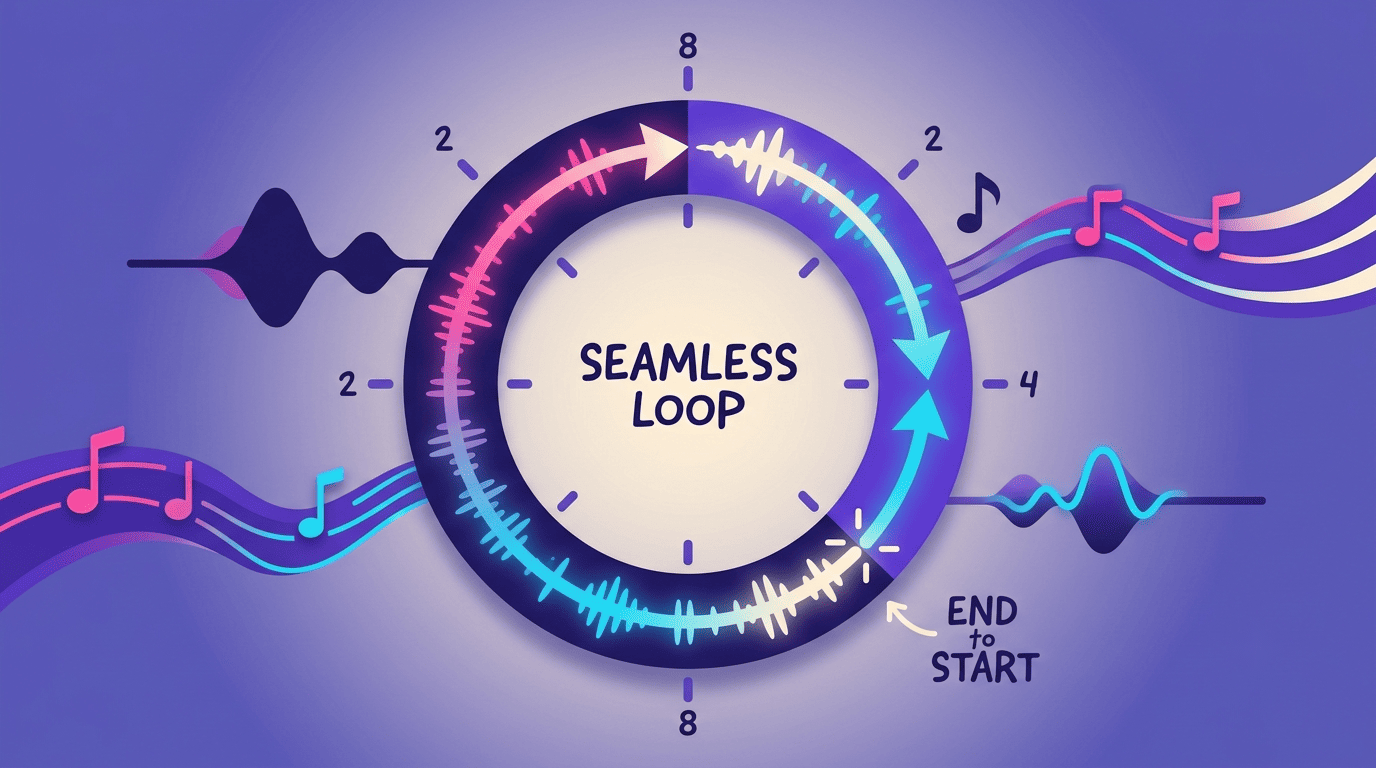
Getting the crossfade length wrong shows up as two different problems: too short and a rhythmic loop clicks at the seam; too long and a percussive pattern smears into a soft, indistinct thud right where the beat should hit hardest.
Stems, MIDI and Using Loops in a DAW
Once a loop sounds right, the export format decides how much control is left for mixing. Audio stems — drums, bass and other elements rendered as separate files — are the fastest path to a usable mix, while MIDI output keeps every note editable after the fact.
Audio stems vs editable MIDI
Stem separation splits a beat into individual audio layers so drums, bass and melodic elements can each be processed on their own channel — useful for a quick mix without touching individual notes. Editable multitrack MIDI goes a step further: because the notes themselves are preserved, an instrument, a pitch, or an entire drum voice can be swapped after generation, not just re-mixed at the audio level. Some tools can also convert existing audio into MIDI and detect its BPM and key automatically, which speeds up matching a generated loop to an existing session.
Which format to ask for depends on how much of the beat is likely to change. A loop that just needs leveling and panning is fine as stems; a loop that needs a different snare sample or a transposed bassline is far faster to fix as MIDI, since the alternative is re-generating the whole prompt and hoping the new version is closer.
Drag into your DAW
Below is a quick reference for the two main paths a generated loop can take once it leaves the browser.
| Format | Best for | Common exports |
|---|---|---|
| Audio stems (WAV/MP3) | Fast mixing, no note-level edits | 44.1kHz stereo WAV, MP3 |
| MIDI | Full note/instrument editing | Standard MIDI file, DAW project |
WAV files, stems and MIDI all drag-and-drop into the same handful of DAWs producers already use daily:
- Ableton Live
- Logic Pro
- FL Studio
- Pro Tools
The one setting worth checking every time is tempo: matching the DAW project’s BPM to the loop’s BPM before enabling warp keeps the timing locked instead of drifting out of sync over a long arrangement.
Writing Prompts That Get Usable Beats
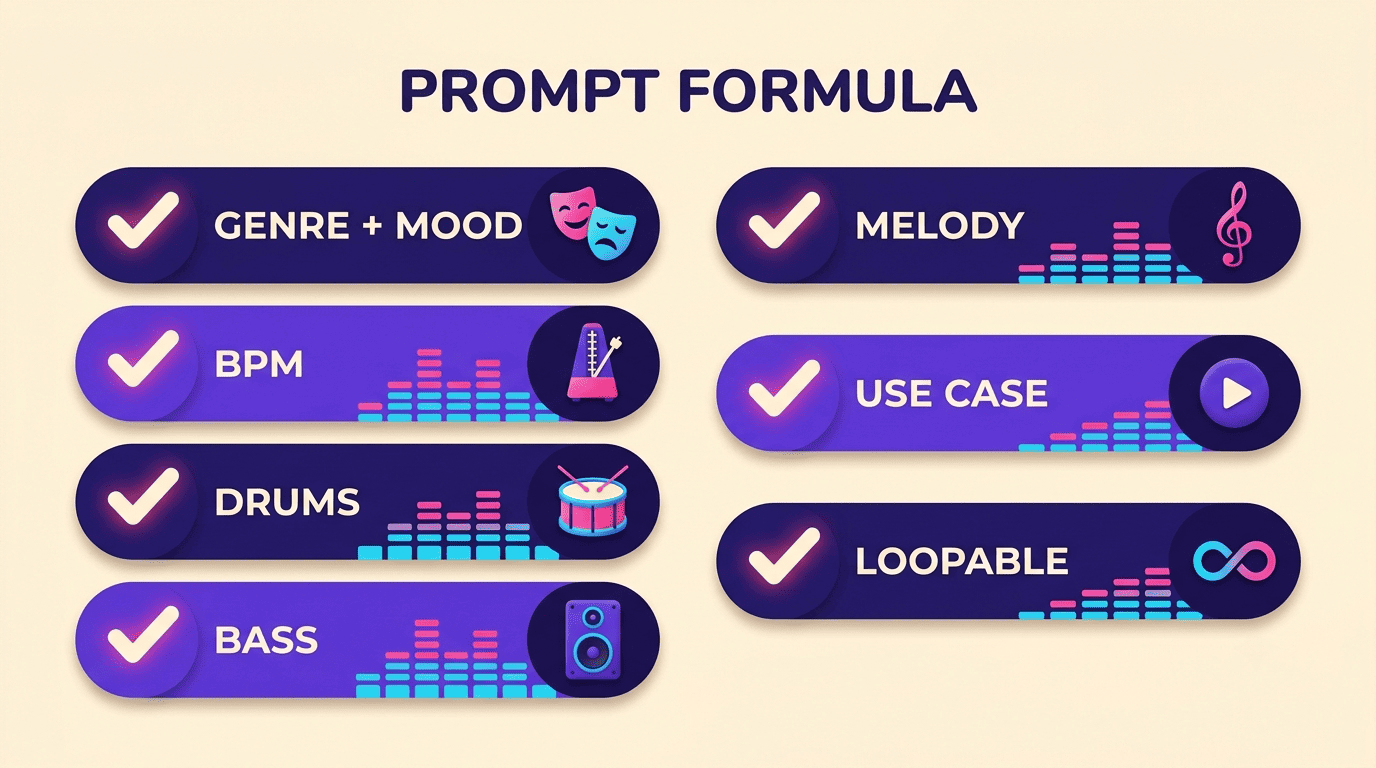
A prompt that only names a genre leaves too much to chance. A tighter formula covers genre, mood, tempo, drums, bass, melody, intended use case and structure — in roughly that order — so the model has enough constraints to land close to what’s needed on the first pass.
Here is a short, repeatable process for building that kind of prompt from scratch:
- Name the genre and one mood word (“dark trap,” “warm lo-fi”).
- Add the exact BPM number.
- Describe the drum elements specifically (kick, hi-hats, snare character).
- Describe the bass (808, sub, upright).
- Add a melodic or textural element if needed (strings, keys, vinyl crackle).
- State the use case — “instrumental only” leaves room for vocals later.
- Ask for a loopable structure in whole bars.
The prompt formula
Put together, a working prompt reads something like: “dark trap beat, 145 BPM, sliding 808s, tight hi-hats, cinematic strings, instrumental only, loopable.” Every clause in that sentence maps to one of the seven steps above, which is why it tends to outperform a vague one-line request.
Notice what’s absent from that prompt as much as what’s present — there’s no adjective salad, no more than one or two mood words, and nothing describing a second genre. Precision beats length; a longer prompt that piles on synonyms for the same idea gives the model less to differentiate on than a shorter one that names distinct elements.
Iterate one change at a time
Rewriting an entire prompt after a disappointing result throws away the parts that were already working. Changing a single element — tempo, then drums, then mood — and comparing outputs side by side makes it much easier to tell which word actually moved the result.
This is slower than mass-generating variations and picking the best one, but it builds a mental map of which words in a prompt do what — a map that keeps paying off on every future beat, not just the one being worked on right now. The most common ways a first prompt fails:
- Too vague — a single genre word with no tempo or drum detail
- Mixing three or more styles at once, leaving the model no clear direction
- Forgetting to state “instrumental only” when vocals need room later
- Treating generation as a single lucky roll instead of an iterative process
Licensing: Read Before You Release
Royalty-free is a common label on generated beats, but it is a starting point for reading the license, not a substitute for it. Terms vary by service and, often, by pricing tier within the same service — a free or entry-level tier can restrict use to personal, non-commercial projects, while a paid producer tier unlocks commercial release, sync licensing or distribution rights.
Reading the specific license tied to the plan actually used — not just the marketing page — is the only reliable way to know what a release is allowed to do. A track cleared for commercial release on one tier can still be flagged if the account was on a free plan when the loop was generated, since the license attaches to the generation event, not to the file afterward.
Uploaded material adds another layer entirely. If a workflow involves uploading someone else’s copyrighted audio to remix or loop, that upload can carry its own licensing requirement even when the AI tool itself is fully royalty-free. The generator’s license only covers what it created; it has no authority over material a user brings in from outside. The U.S. Copyright Office publishes general guidance on what qualifies for copyright protection and how derivative works are treated, which is a useful baseline before releasing anything built on uploaded source material.
For a general reference on how digital audio and MIDI data is structured once a loop reaches a DAW, Wikipedia’s overview of MIDI and Ableton’s official product documentation both cover the mechanics in more depth than a single article can.