
AI Music for Videos: How to Generate the Perfect Soundtrack From Text
Background music sets the emotional tone of a video before a single word is spoken, and an AI music generator from text lets you build that soundtrack by simply describing the scene. Type a mood and a genre, and the model returns a royalty-free track in seconds — no stock library, no composer, no waiting.
This guide walks through writing a prompt that actually matches your footage, fitting the track’s length and pacing to your format, ducking the music under a voiceover, and — the part most tutorials skip — reading the license before you publish or monetize.
What “AI Music for Videos” Actually Means
A text-to-music AI generator turns a written description — something like “uplifting electronic beat with ambient synths for a travel montage” — into an original instrumental track in a matter of seconds. Unlike a stock music library where you pick from thousands of pre-recorded loops, the output is generated specifically from your prompt, so the track is built around your scene rather than the other way around. Most tools export straight to MP3 or WAV, ready to drop into a timeline.
From a sentence to a scored scene
The core mechanism is simple: you describe mood, genre, and instrumentation in a sentence, and an AI background music generator composes a new instrumental around that description. There’s no need to browse a catalog or negotiate licensing terms with a composer — the prompt itself is the brief. Because each generation is produced on demand, two creators asking for “chill lofi beat for a study video” will get two different tracks, not the same stock loop reused across thousands of channels.
Where creators use it
An AI soundtrack generator shows up anywhere a video needs a mood, not just a melody:
- YouTube videos and channel intros
- Instagram Reels and TikTok clips
- Short films, trailers, and sizzle reels
- Podcast intros and outros
- Livestream backgrounds
- Ads and product demos
- Explainer and training videos
Demand for this workflow is large enough that Beatoven.ai reports over 2 million creators and 15 million tracks generated on its platform alone — a scale that reflects how routine text-to-music has become for everyday editing.
Writing a Prompt That Matches the Mood
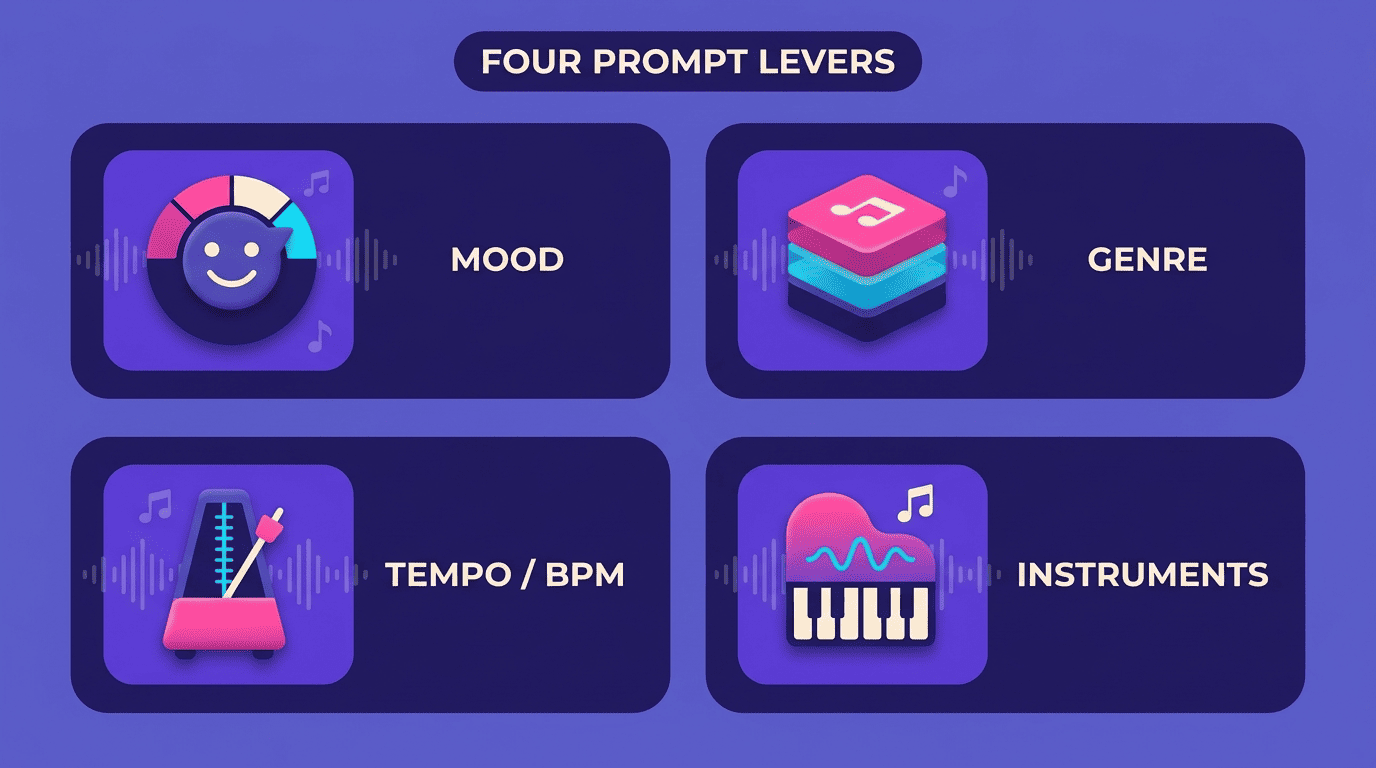
The four levers: mood, genre, tempo, instruments
The more specific the prompt, the more accurate the result. Instead of “background music,” describe:
- Mood — chill, uplifting, tense, melancholic
- Genre — lofi, cinematic orchestral, electronic, corporate pop
- Tempo or BPM — a number, or a feel like “slow and spacious” vs. “driving”
- Instruments — piano, synth pads, strings, percussion
A prompt like “cozy vlog background, warm piano, 75 BPM” gives the AI music generator far more to work with than a single adjective, and the difference shows up immediately in how well the track fits the footage.
Match music to the scene, not the other way around
Background music should match the video’s scene and mood — which means the prompt comes after you’ve decided what the scene needs emotionally, not before. A calm tutorial calls for ambient, focused instrumentals; a fast-cut action montage calls for driving electronic beats. Somio’s generator can return multiple variations per prompt so creators can compare and pick the closer fit, which is a useful habit even on tools that only return one track at a time: generate more than once before you commit to a version.
| Scene type | Suggested mood/genre | Typical tempo |
|---|---|---|
| Travel montage | Uplifting electronic, ambient synths | Mid-to-fast |
| Tutorial / how-to | Calm, focused, minimal ambient | Slow |
| Product ad | Bright, energetic pop or corporate | Mid-to-fast |
| Action/sports edit | Driving electronic, cinematic percussion | Fast |
| Podcast intro | Warm, brief, distinctive theme | Any, short |
Getting Length and Pacing Right
Track length should match the pacing of the video it’s scoring, and most AI music generators for video give you direct control over duration rather than forcing you to trim a fixed-length file.
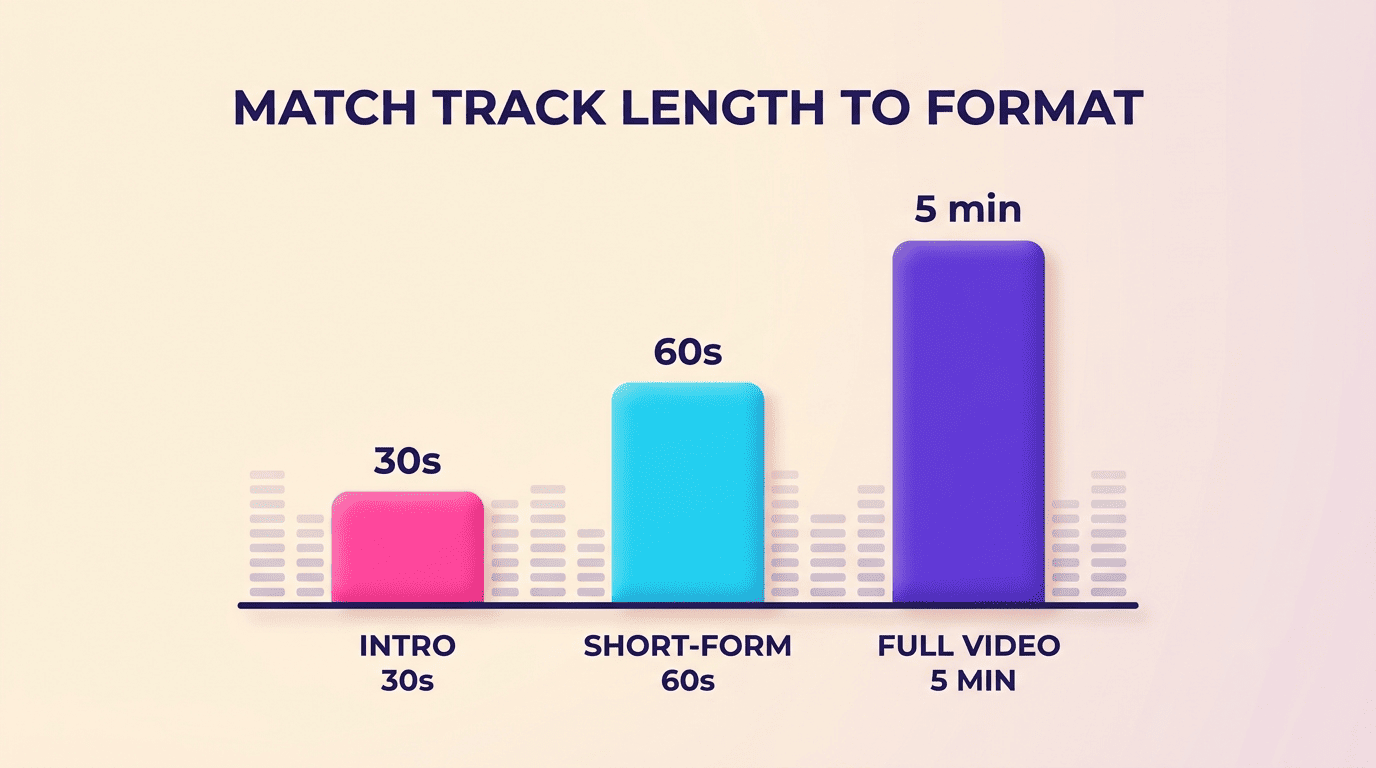
Short-form vs. long-form. Intros and outros typically run 15–30 seconds, while a full soundtrack for a standard video runs 3–5 minutes to match its runtime. For Reels and TikTok clips (roughly 15–60 seconds), a short, energetic loop works better than a long track cut down mid-phrase. For a YouTube essay or long-form tutorial, a longer, lower-energy ambient bed keeps the background consistent without becoming a distraction.
Loop mode for seamless backgrounds. A loop or seamless-background mode lets you generate a short segment and repeat it across the timeline instead of stretching a single track past its natural length, which avoids the audible seam where a track would otherwise end and restart. Generate a clean 20–30 second loop, then repeat it on the timeline for as long as the video needs — it plays more naturally than time-stretching a full track.
Mixing Under a Voiceover: Ducking and Sync
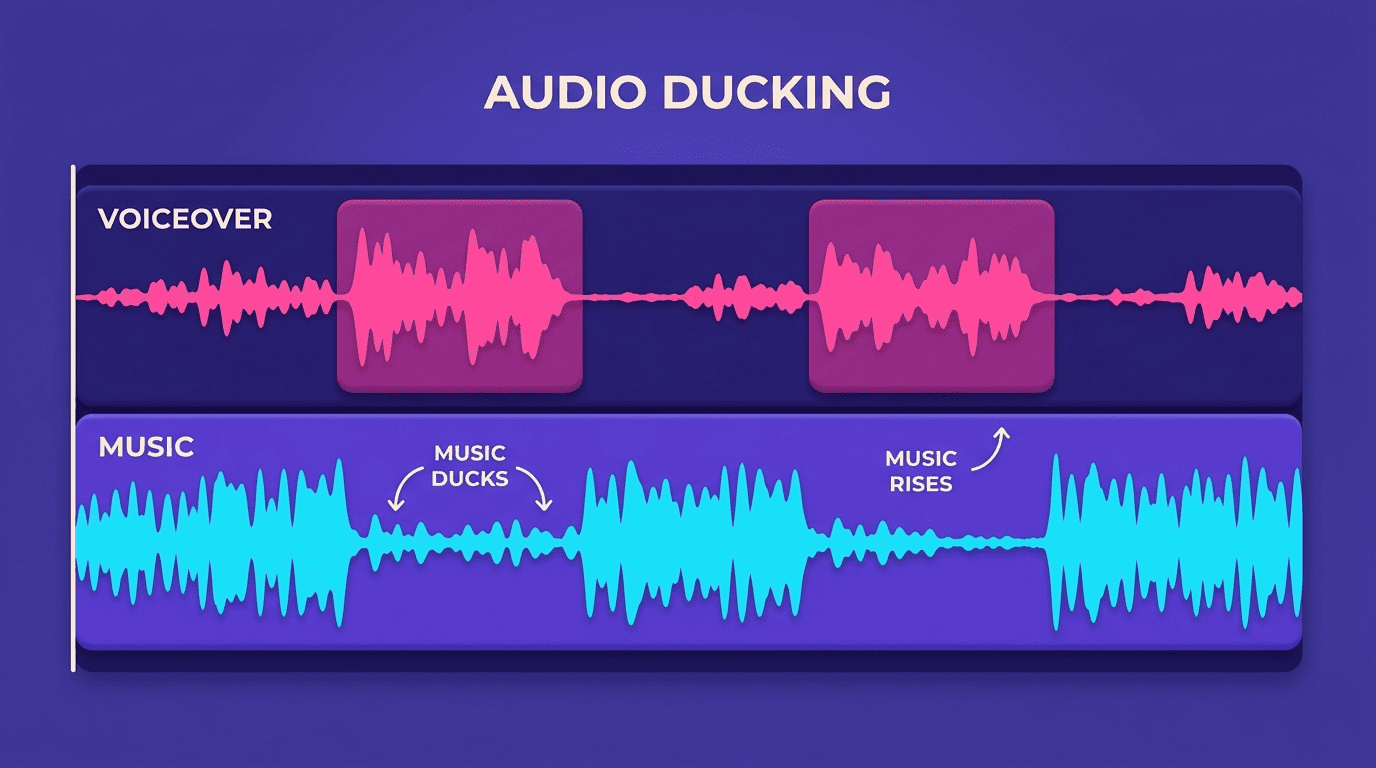
What ducking does and why it matters
Audio ducking automatically lowers the music under a voiceover, then brings the volume back up once the speaker pauses — solving the common problem of background music burying narration. Most ducking tools expose a few key parameters: sensitivity (how aggressively the tool detects speech), ducking level (how much the music drops), and fade-in/fade-out timing (how smoothly the transition happens). The feature is built into most modern editors, including Adobe Premiere Pro, DaVinci Resolve, Final Cut Pro, and Filmora. Adobe’s own documentation on automatically ducking audio in Premiere walks through applying the effect so a music clip automatically lowers when a tagged dialogue or narration clip plays.
Practical mixing tips
A short numbered routine covers most ducking situations:
- Drop your AI-generated track onto its own audio layer, separate from dialogue.
- Apply ducking (or a manual gain automation) keyed to the voiceover track.
- Set the music to roughly −18 to −24 dB while someone is speaking.
- Let it rise to roughly −8 to −12 dB during pauses with no dialogue — treat both numbers as a starting point to fine-tune by ear.
- Nudge the fade-in/fade-out timing so transitions aren’t abrupt.
- Align musical accents — a drop, a chord change, a section break — with cuts in the edit.
- Record narration in a quiet room; ducking balances volume, it doesn’t remove background noise.
Licensing and Monetization: Read Before You Publish
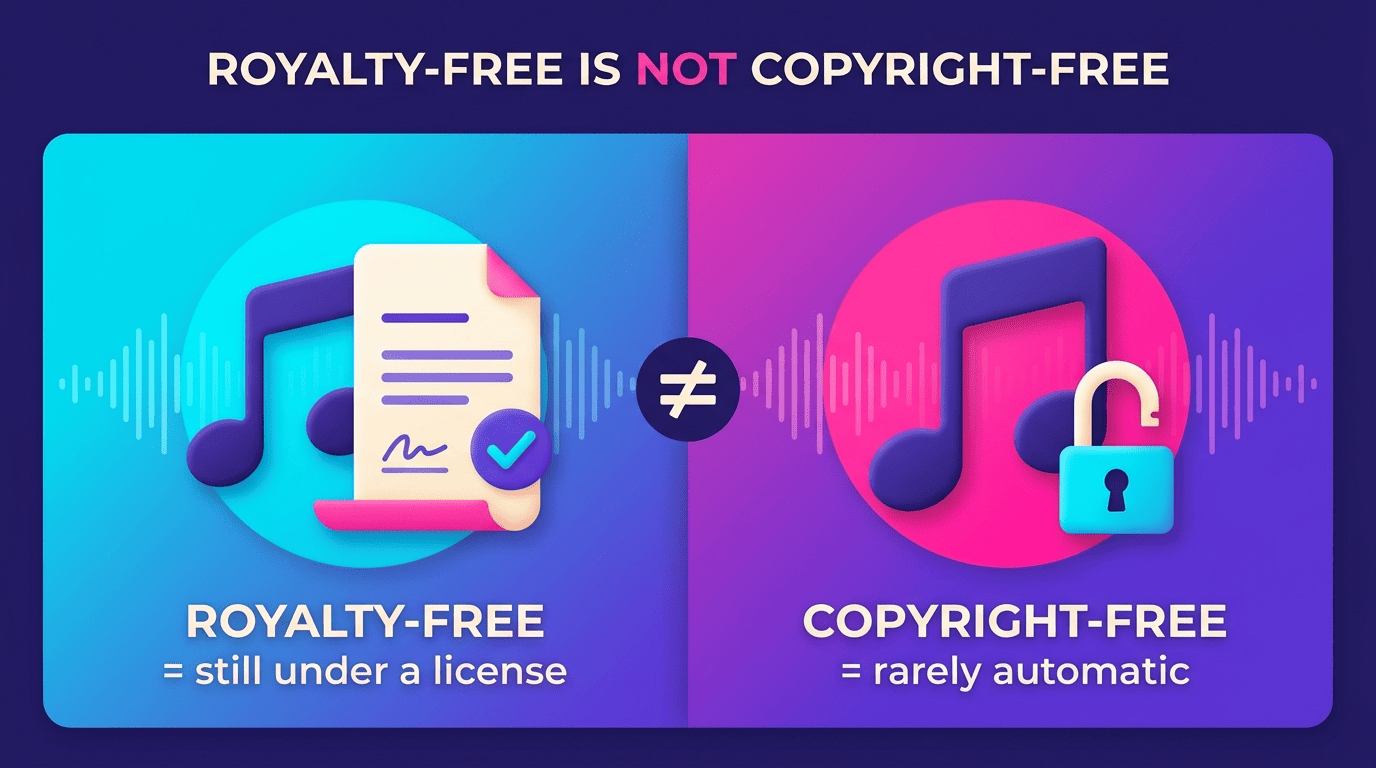
Royalty-free is not copyright-free
“AI-generated” doesn’t automatically mean free to use however you like, and royalty-free doesn’t mean copyright-free. A royalty-free track is still protected by copyright and governed by the license agreement of the platform that generated it — that license is what actually determines whether you can use the track commercially or monetize a video built around it. YouTube’s own Content ID documentation makes clear how strictly matching works on the platform:
Using a database of audio and visual files submitted by copyright owners, Content ID identifies matches of copyright-protected content.
YouTube Help — How Content ID Works
That matching process runs against the reference file itself — it doesn’t ask whether the music in your video was composed by a person or generated by an AI tool. The U.S. Copyright Office’s ongoing work on AI and copyright is specifically examining how copyright law applies to AI-generated outputs, which underlines why “AI-generated” isn’t a license in itself.
Check the license before you commit
License terms vary a lot between AI music generators for video, and the differences matter as soon as you publish:
| Platform | License type | Notable terms |
|---|---|---|
| SOUNDRAW | Worldwide commercial license | You keep 100% of recording royalties for life; publishing royalties are split with SOUNDRAW |
| Beatoven.ai | Non-exclusive, perpetual license | Platform retains ownership; license delivered per track |
| Remusic | Free tier for personal, non-commercial use | Commercial license only unlocked on paid plans |
| Mubert | Free tier is personal-use only | Paid tiers add commercial rights; redistributing tracks on stock/streaming platforms is prohibited on every tier |
Always read the terms of the specific tool you’re using — a license that’s fine for a personal vlog can be the wrong one for a sponsored ad or a monetized channel.
Staying safe on YouTube
AI-generated music can be monetized on YouTube in 2026 as long as you hold clear rights to use it — platforms evaluate ownership and license terms, not the tool that produced the track. Content ID scans uploads for matches against copyrighted reference files, so it’s worth uploading a video as unlisted first and letting YouTube’s Checks step run before you publish publicly. Keep a record of how the track was made, in case a claim needs to be disputed later:
- The generator or platform used
- The exact text prompt
- The generation date
- A screenshot or copy of the license terms